Create a voice clone
Acoust creates a clone through an in-app microphone recording. Before you begin, use a supported browser with microphone access. The person whose voice will be cloned must speak the displayed first-person consent statement into the recorder; do not record consent on someone else's behalf. That recording also serves as the voice sample, so there is no separate audio-file upload step.
Record and submit
- Open Voice Cloning and choose Create Voice.
- Choose a language supported by the consent form and enter a voice name.
- The person whose voice will be cloned reads the displayed consent statement aloud exactly as shown while recording. The recorder captures a short sample (up to 10 seconds).
- Stop and preview the recording. If it is unclear or incomplete, reset it and record again.
- When the recording is confirmed, select Create voice. Keep the dialog open while the app reports that it is processing.
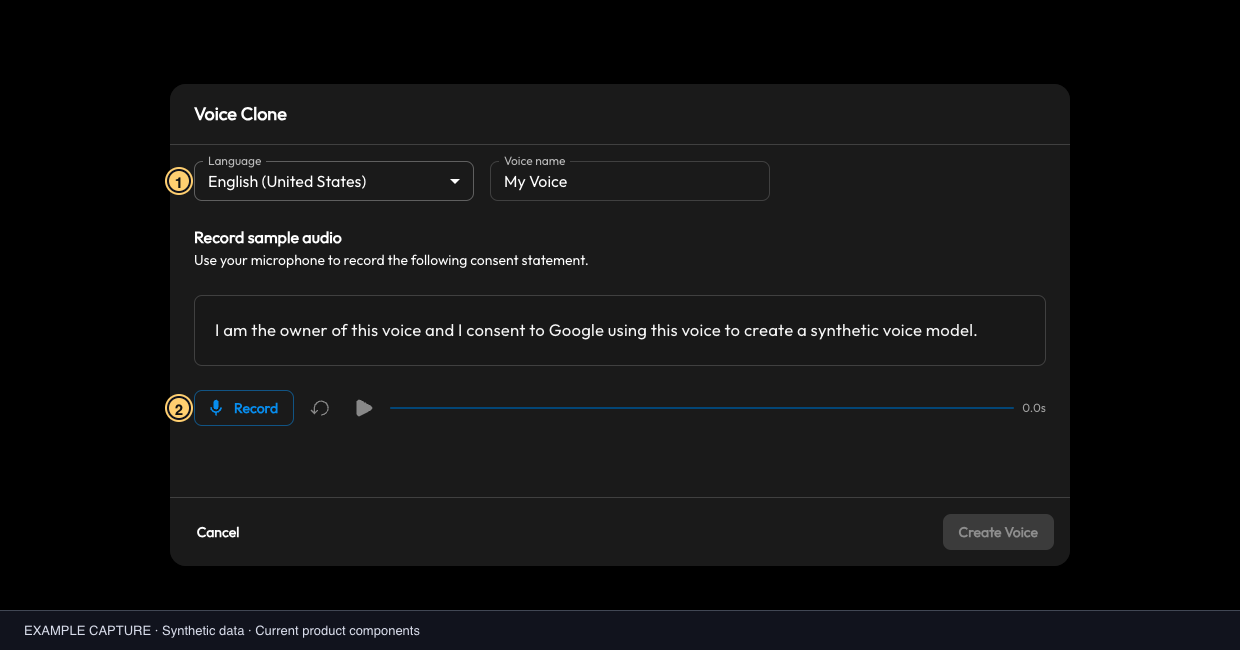
Example clone form: 1 choose a language; 2 record the voice owner’s consent. No microphone recording was made for this example. Select the image to view it full size.
Understand clone status
The voice list shows Processing, Ready, or Failed. A Ready clone can be previewed and selected for a project. A Processing or Failed clone cannot be selected. If creation reports an error, read the displayed reason and check the voice list before submitting again. The roster belongs to your account; do not assume other team members can use your clone.
The current UI permits one clone on a standard plan and up to five on a premium plan. If you reach the displayed limit, review the listed clones and plan details before deleting anything. Deleting a clone removes it from your list and may affect projects that depend on it.
If microphone recording fails
- If the browser asks, allow microphone access for Acoust.
- If access was denied, use the browser's site-permission controls and your operating system's microphone privacy settings, then refresh the page.
- Close other apps or tabs that may be using the microphone, reconnect the device, and try a short test recording.
- If the recorder still cannot start or play the preview, note the visible error and contact Acoust support. Do not share recorded audio unless you intend to.
For language and voice selection after approval, read Choose and preview voices. For speech generation with a clone, see Generate audio; cloned-voice usage is charged at twice the input-character amount.