Generate audio from a script
Generation sends text and voice settings for speech synthesis. Before generating, review the script, section breaks, voice, and language. You can preview one section first, then generate the full project.
Preview one section
Select Generate and play paragraph on the section. Wait for its audio and listen. If the words, language, or voice are wrong, edit the section or change the voice and preview again.
Generate the full project
- Confirm the script is ready. Sections are limited to 4,000 characters and a plan-dependent count (50 standard, 100 premium).
- Confirm each section has a voice selected.
- Select Generate all sections and play audio in the player bar.
- Wait for the operation to finish, then listen to the merged playback and check the individual section statuses.
The editor uses character credits based on submitted text. A cloned voice is charged at twice the input-character amount. Your available allowance can be personal or shared through a team; members may not see the shared pool total in their own account counters.
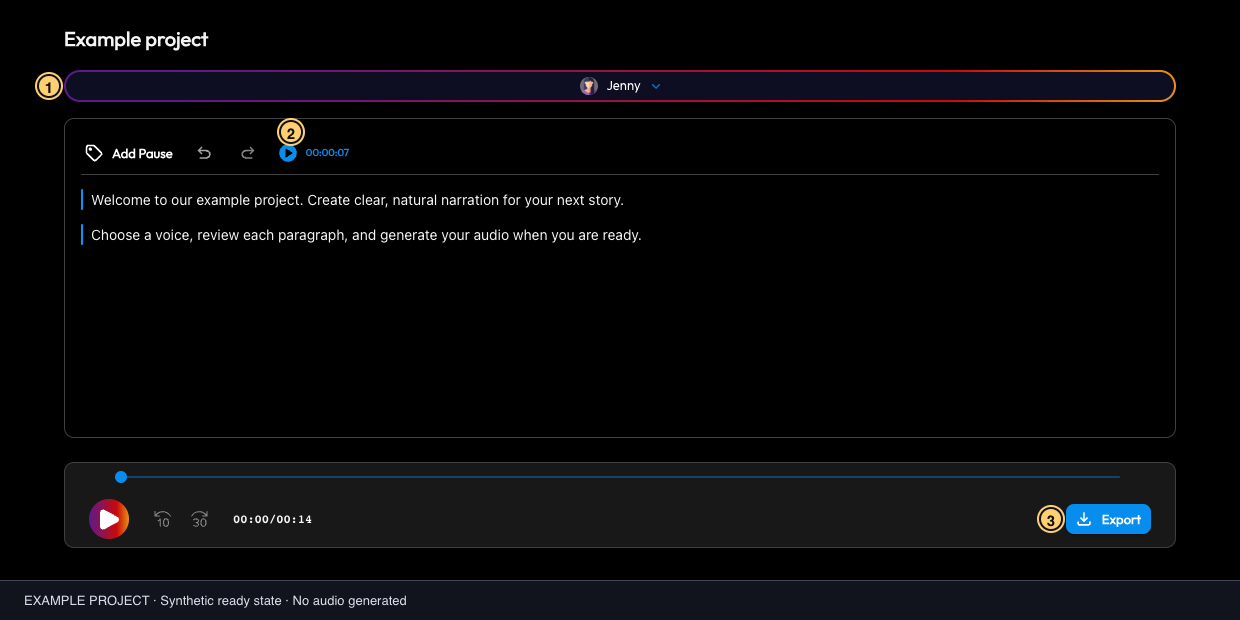
Example editor: 1 voice selection; 2 paragraph preview; 3 Export. Use the bottom-left play button for the full project. This is a synthetic audio-ready state. Select the image to view it full size.
Change text or settings after generation
Edit the affected section or select a different voice, then generate a fresh preview and full audio when ready. Existing generated sections may remain available, but listen to the resulting project to make sure it matches your current script. A successful earlier preview is not a confirmation that the changed full project has been generated.
If generation fails or the result is uncertain
If a settled error says one or more sections could not be generated, keep the successful sections, correct the indicated issue, then select Generate all sections and play audio. The editor retries sections without audio and reuses retained section audio when assembling the result. If a settled error says the final audio could not be stitched, the section audio is retained; select Generate all sections and play audio to assemble the result again from those sections.
These editor recovery steps apply after the operation has ended with one of those errors. If it is still processing, appears stuck, or you cannot tell whether it completed or consumed credits, check the project and usage display and contact support; do not start another generation while the outcome is uncertain. A failure message alone does not confirm a refund. These steps do not apply to REST or MCP requests, which have separate recovery guidance. Use generation troubleshooting for a safe checklist.
Next: Save your project · Export audio · Credit questions